Showing posts with label Artistic Reality Talent tube. Show all posts
Showing posts with label Artistic Reality Talent tube. Show all posts
Wednesday, August 13, 2014
Sweet Babe

This tutorial is my property, written by
Jeannine’sTag,
Do not claim this tutorial as
yours, my tutorials
are protected
any resemblance to another tutorial is a
coincidence.
Do not share my tutorial, send a link to my blog.
Do not share my tutorial, send a link to my blog.
Supplies Needed:
PSP 9 (any version
should work).
Tube of choice
Mine is “Just Lucky" made by Arthur Crowe
You may not use this tube without licence
Buy the tube HERE
PTU scrapkit
“Just Lucky" made by Niqui's Desings
Template 643 made by Millie
Mask of
choice
Font of choice mine is the Daily Bread (PTU)
Drop shadow: 2 - 2 – 50 – 7
Lets get started…..!
Open template – delete credit – image canvas size 800 X 800
Background - select all -open paper 10 - c/p into selection– select none
- apply the mask – layers merge group
1 & 2- select all – selection float –
defloat - 7 – copy & paste as new layer – selection invert – delete – add
drop shadow
3 - select all – selection float – defloat
- open paper 10 – copy & paste as new layer – selection invert – delete –
add drop shadow
4 & 5- select all – selection float –
defloat - open paper 3 - copy & paste as new layer – selection invert –
delete – add drop shadow
6 - select all – selection float – defloat
- open paper 4 - copy & paste as new layer – selection invert – delete –
add drop shadow
7 - select all – selection float – defloat
- open paper 5 - copy & paste as new layer – selection invert – delete –
add drop shadow
WA
- adjust - color balance - manual color correction - choice a color from
tube or kit
Open elements and resize (if needed):
Never work on the original design - always shift D
(Be careful when you resize
or rotate it is
sometimes necessary to sharpen)
14 - width 750
180- original size - image mirror
2 - original size
28 - width 200 - rotate free right 20°
29 - width 200
3 - width 200
8 - width 200
25 - width 200
20 - width 150
240- width 200 - rotate free right 20°
Place all items (look at my tag for
example)
Copy - Paste your tube as new layer. Resize
if need it.
Add copyright info. Merge visible.
Add your name
Save as png or jpg.
Enjoy this tutorial and I'd like to see your results, you can email
me
Monday, September 24, 2012
Queen of Madness
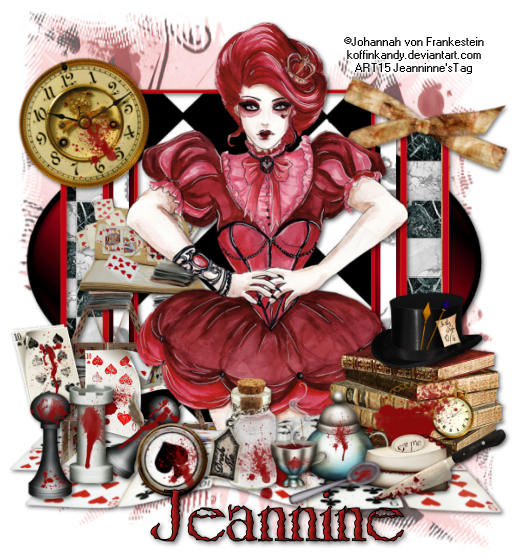
This tutorial is my property, written by Jeannine’sTag,
any resemblance to another tutorial is a coincidence.
Do not share my tutorial, send a link to my blog.
Do not share my tutorial, send a link to my blog.
Supplies Needed:
PSP 9 (any version should work).
Tube “Red
Queen” from Johannah von Franhestein
You may not use
this tube without licence
PTU scrap kit “Madness” from Irish Bitch Designs
Both can buy in store from Artistic Reality Talent
Template 110 from Beth
Font: Grunge Caltek Bold (pay font)
Mask of choice
Drop shadow: 2 - 2 – 60 – 7
Lets get started…..!
Open template – shift D – delete credit & WA – resize 550 – image
canvas size 600 x 600 center
Highlight
Raster 1– select all – open paper 8 - paste into selection – select none
– apply the mask –layers merge group
Lg black rectangle –
selection – select all – float – defloat –open paper 10 – copy and paste as new
layer – selection invert – delete – add drop shadow
Rigth thin rectangle –
selection – select all – float – defloat –open paper 7 – copy and paste as new
layer – selection invert – delete – add drop shadow
Do the same action with left
thin rectangle
Left rectangle
background – selection – select all – float – defloat - open paper 12 – copy
and paste as new layer – selection invert – delete – add drop shadow
Do the same action with right
rectangle background
Layers merge visible
Open
elements and resize (if needed):
Never work on the original design - always
shift D
(Be careful when you resize or
rotate it is sometimes
necessary to sharpen)
House of cards – width 300
Cards 1 – width 550
Books – width 200
Clock – width 250 – imùage rotate free left 20°
Tea pot – width 120
Bow 3 – width 200 –
Cup – width 75
Button – width 150
Chess – width 100
Chess 3 – width 50
Chess 1 – width 50
Drink me – width 100
Knife 1 – width 150
Card 2 – width 150
Card – width 100
Cake – width 100
Spoon – width 110
Place all items (look at
my tag for example)
Copy - Paste your tube as new layer. Resize if need it.
Add copyright info. Merge visible.
Add your name and give a little inner bevel
I resize mine width 520
Save as png or jpg.
Enjoy
this tutorial and I'd
like to see your results, you can
email me
Tuesday, August 21, 2012
Rebel Rock

This tutorial is my property, written by Jeannine’sTag,
any resemblance to another tutorial is a coincidence.
Do not share my tutorial, send a link to my blog.
Do not share my tutorial, send a link to my blog.
Supplies Needed:
PSP
Tube “Alette” by Ange10
PTU scrapkit “Back In
Black” by Amy
Marie’s
don’t use the tube without licence
Both can buy in store
from Artistic Reality Talent
Template 147 by ToxicDesirez Scrapz By Kristin
Font of choice
Mask of
choice
Drop shadow: 2 - 2 – 60 - 7
Lets get started…..!
Open template – shift D – delete credit – resize width 550 – image
canvas size 700 X 700 center
Highlight
Background - selection select all – open paper 4– copy and paste into
selection – select none – apply the mask – layer merge group – layer arrange –
send to bottom
Layer 9 & 10 – add drop shadow
Sm rectangle 1 –
selection – select all – float – defloat – open paper 14 – copy and paste as
new layer – selection invert – delete – add drop shadow
Do the same action with Sm
rectangle 2
Glitter rectangle –
selection – select all – float – defloat – flood file with a silver gradient
Do the same action with
Glittered rectangle & Smal glittered
circle
Large rectangle –
selection – select all – float – defloat – open paper 5 – copy and paste as new
layer – selection invert – delete – add drop shadow
Large circle – selection
– select all – float – defloat – open paper 13 – copy and paste as new layer –
selection invert – delete – add drop shadow
Large half circle – selection – select all – float –
defloat – open paper 13 – copy and paste as new layer – selection invert –
delete – add drop shadow
Remove small circle, small
half circle, skull and stars
Layers – merge visible
Open
elements and resize (if needed):
Never work on the original design - always
shift D
(Be careful when you resize or
rotate it is sometimes
necessary to sharpen)
Candy – width 178
22 – width 165 – add gradient
glow
Drums – width 300
Micro – width 80
Keys – original size
Ff – write what you will
– resize width 130 – image rotate free left 20°
Hat – width 100
Guitar 1 – width 100 –
image rotate free right 20°
Tdrum – width 300
Butterfly 2 – 120
Lips – width 120
D1 – width 100
D2 – width 120
B2 – width 80
Flower 1 – width 150
Place all items (look at
my tag for example)
Copy - Paste your tube as new layer. Resize if need it.
Add copyright info. Merge visible.
Add your name and give a little inner bevel
I resize mine width 520
Save as png or jpg.
Enjoy
this tutorial and I'd
like to see your results, you can
email me
Subscribe to:
Posts
(Atom)
My Blog List
-
-
NEWS6 years ago
-


