Showing posts with label PimpmyTags Scrapkit. Show all posts
Showing posts with label PimpmyTags Scrapkit. Show all posts
Tuesday, June 17, 2014
Go Belgian Red Devils

This tutorial is my property, written by Jeannine’sTag,
any resemblance to another tutorial is a coincidence.
Do not share my tutorial, send a link to my blog.
Do not share my tutorial, send a link to my blog.
Supplies Needed:
PSP 9 (any version should work).
Tube of choice
Mine is ”Tube football” made by Lysisange
You may not use this tube without licence
PTU scrapkit “Horny Lil Devil” InzpiredCreationz
You can buy
the kit on Pimp My Tags w/Scraps
Template 598 made by Millie
Font of choice
Drop shadow: 2 - 2 – 50 – 7
Lets get started…..!
Background - select all -open paper 12 - c/p into
selection– select none - apply the mask – layers merge group
1 & 3- select all –
selection float – defloat - open paper 10 – copy & paste as new layer –
selection invert – delete – add drop shadow
2 - select all –
selection float – defloat - open paper 7 – copy & paste as new layer –
selection invert – delete – add drop shadow
4 - select all –
selection float – defloat - open paper 12 – copy & paste as new layer –
selection invert – delete – add drop shadow
5 - select all –
selection float – defloat - open paper 5 - copy & paste as new layer –
selection invert – delete – add drop shadow
6 - select all –
selection float – defloat - open paper 6 - copy & paste as new layer –
selection invert – delete – add drop shadow
WA select the word and change
the color with adjust – color balance – manual color correction (I’v choice the
color from Belgium flag
Open
elements and resize (if needed):
Never work on the original design - always
shift D
(Be careful when you resize or
rotate it is sometimes
necessary to sharpen)
Bow 3 – width 250
Fire tag 1 – width 200
Ribbon 2 – original size – image mùirror
Fire 2 – original size
Fire 1 – width 300
Lil devil – width 200
Pitch fork – width 300
Devil tail – original size
Heart 5 – width 250
Flower 1 – width 200
Lips 3 – width 200
Cocktail 1 – width 120
Cupcake 3 – width 130
Duke – width 120
Word art 1 – width 270
Smoke – original size
Sparkle 3 – original size
Place all items (look at
my tag for example)
Copy - Paste your tube as new layer. Resize if need it.
Add copyright info. Merge visible.
Add your name
Save as png or jpg.
Enjoy
this tutorial and I'd
like to see your results, you can
email me
Wednesday, January 22, 2014
Sweet as Candy

This tutorial is my property, written by Jeannine’sTag,
any resemblance to another tutorial is a coincidence.
Do not share my tutorial, send a link to my blog.
Do not share my tutorial, send a link to my blog.
Supplies Needed:
PSP 9 (any version should work).
Tube of choice
Mine "Candy Girl" made by Chris Pastel
You may not use this tube without licence number
You can buy the tube HERE at ThePSPPoject
PTU scrapkit "Candy Shop" made by Designs by Sarah
You can buy the kit on Pimp My Tags w/Scraps
Font of choice
2 mask of choice
Drop shadow: 2 - 2 – 50 – 7
Lets get started…..!
Open new layer 800 x 800
Select all - open paper 6
- copy and paste into selection - select none - apply you mask - layers merge
group
open new raste layer -
semect all - open paper 12 - paste into selection - selct none - apply the
second mask - layers merge group
Open frame 4 - resize
width 600 - clic inside the frame with magik wand - selection modify - expand 5
- open paper 9 - copy and paste as new layer - selection invert - delete layer
arrange move down - add drop shadow on frame
Open
elements and resize (if needed):
Never work on the original design - always
shift D
(Be careful when you resize or
rotate it is sometimes
necessary to sharpen)
Button 1 - original
size
Bow 4 - width 200
Ribbon 4 - original
size
Candy machine 1 -
width 150
18 - width 120
Beads - width 350
8 - width 250
5 - width 150
17 - width 250
23 - width 150
12 - width 100
9 - width 150
22 - width 150
16 - width 130
10 - width 100
25 - width 100
13 - width 100 -
duplicate
19 - width 100
Flower - width 200
Place all items (look at my tag for example)
Copy - Paste your tube as new layer. Resize if need it.
Add copyright info. Merge visible.
Add your name
Save as png or jpg.
Enjoy
this tutorial and I'd
like to see your results, you can
email me
Thursday, January 16, 2014
Crazy Rock Misfit
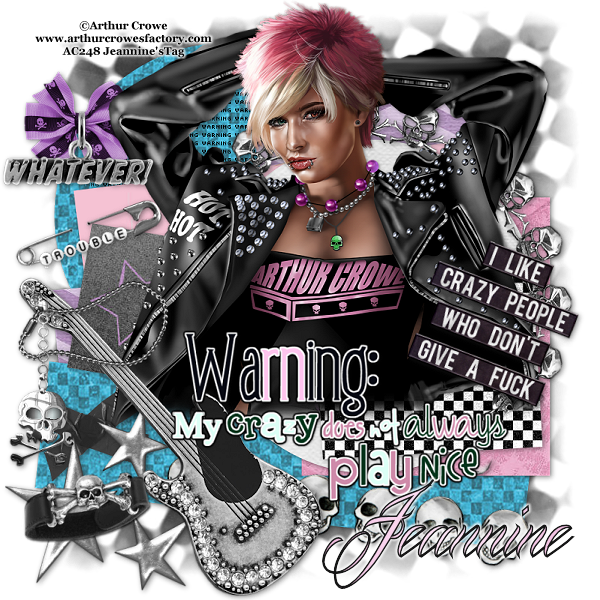
This tutorial is my property, written by Jeannine’sTag,
any resemblance to another tutorial is a coincidence.
Do not share my tutorial, send a link to my blog.
Do not share my tutorial, send a link to my blog.
Supplies Needed:
PSP 9 (any version should work).
Tube of choice
PTU tube " “Let's to Rock” (close up) By ©Arthur Crowe
You may not use this tube without licence
Buy the tube on Arthur Store
PTU scrapkit "Misfit" made by DigitalIndulgence
You can buy the kit on Pimp My Tags w/Scraps
Template 141 by Tamie for Addictive Templates
Font of choice mine is Mardian Demo
Mask of choice mine is 326 by Insatiable Dreams
Drop shadow: 2 - 2 – 50 – 7
Lets get started…..!
Raster 17 - select all - open paper 17 – select none -
apply the mask – layers merge group
Raster 7 - select all –
selection float – defloat - open paper 11 – copy & paste as new layer –
selection invert – delete – add drop shadow
Take the same paper for
raster 9
Raster 5 - select all –
selection float – defloat - open paper 21 – copy & paste as new layer –
selection invert – delete – add drop shadow
Take the same paper for
raster 4
Raster 1 - select all –
selection float – defloat - open paper 10 – copy & paste as new layer –
selection invert – delete – add drop shadow
Raster 3 - select all –
selection float – defloat - open paper 20 – copy & paste as new layer –
selection invert – delete – add drop shadow
Raster 6 - select all –
selection float – defloat - open paper 15 – copy & paste as new layer –
selection invert – delete – add drop shadow
Raster 2 - select all –
selection float – defloat - open paper 1 – copy & paste as new layer –
selection invert – delete – add drop shadow
Raster 8 - select all –
selection float – defloat - open paper 13 – copy & paste as new layer –
selection invert – delete – add drop shadow
Open
elements and resize (if needed):
Never work on the original design - always
shift D
(Be careful when you resize or
rotate it is sometimes
necessary to sharpen)
Label - width 200 -
rotate free right 20°
Guitar - original
size - image mirror
Frame 4 - original
size
Bow 1 - width 150
Hanger 2 - width 100
Duct tape - original
size
Silver stars - idth
200
Chain 1 - width 200
Charm- width 200
Skull Boarder -
original size - rotate free right 10°
Cuff 1 - width 180
Word pin 3 - width
200 - rotate free left 20°
Place all items (look at my tag for example)
Copy - Paste your tube as new layer. Resize if need it.
Add copyright info. Merge visible.
Add your name
Save as png or jpg.
Enjoy
this tutorial and I'd
like to see your results, you can
email me
Subscribe to:
Posts
(Atom)
My Blog List
-
-
NEWS6 years ago
-


