Saturday, September 22, 2012
Trick Honey Extra's


Trick Honey
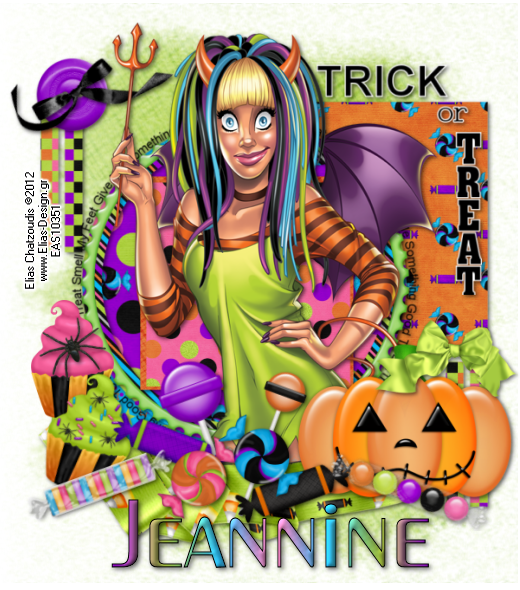
This tutorial is my property, written by Jeannine’sTag,
any resemblance to another tutorial is a coincidence.
Do not share my tutorial, send a link to my blog.
Do not share my tutorial, send a link to my blog.
Supplies Needed:
PSP 9 ((any version should work).)
Tube “Trick Honey”
from Elias Chatzoudis
You may not use
this tube without licence
Buy the tube on Elias Shop
PTU scrap kit “Sweetest Halloween” by Design by Sarah
Kit buy on Pimp My Tags w/Scraps
Template “Halloween2011_1” by Crys
Font:
Mask of choice
Drop shadow: 2 - 2 – 60 - 7
Lets get started…..!
Open template – shift D – delete credit, big bat & small bat –
resize 550 – image canvas size 600 x 600 center
Highlight
Background – select all – open paper 4 - paste into selection – select
none – apply the mask –layers merge group
Orange rectangle –
selection – select all – float – defloat –open paper 2 – copy and paste as new
layer – selection invert – delete – add drop shadow
Green rectangle–
selection – select all – float – defloat –open paper 7 – copy and paste as new
layer – selection invert – delete – add drop shadow
Purple circle –
selection – select all – float – defloat - open paper 12 – copy and paste as
new layer – selection invert – delete – add drop shadow
Open frame 10 – resize width
380 – copy and parte on the circle – add drop shadow
White frame – selection –
select all – float – defloat - open paper 5 – copy and paste as new layer –
selection invert – delete – add drop shadow
Black square – selection
– select all – float – defloat - open paper 9 – copy and paste as new layer –
selection invert – delete – add drop shadow
Layers merge visible
Open
elements and resize (if needed):
Never work on the original design - always
shift D
(Be careful when you resize or
rotate it is sometimes
necessary to sharpen)
Jack o lantern – width 250
Button 7 – width 150
Bow 7 – width 200 – image rotate free left 20°
Ribbon 2 – width 500 – image flip
Cup cake 3 – width 150
Cup cake 4 – width 150 – image rotate free right 20°
Lolli 3 – width 50
Lolli 2 – width 75
Spider 2 – width 100
Candies 1 – width 200 – image rotate free right 20°
Candies 5 – width 200
Candies 4 – width 150
Candies 2 – width 100
Candies 1 – width 100 – image mirror
Place all items (look at
my tag for example)
Copy - Paste your tube as new layer. Resize if need it.
Add copyright info. Merge visible.
Add your name and give a little inner bevel
Here a gradient I have create for the name

I resize mine width 520
Save as png or jpg.
Enjoy
this tutorial and I'd
like to see your results, you can
email me
Wednesday, September 19, 2012
Bewitched

This tutorial is my property, written by Jeannine’sTag,
any resemblance to another tutorial is a coincidence.
Do not share my tutorial, send a link to my blog.
Do not share my tutorial, send a link to my blog.
Supplies Needed:
PSP all version will work
Tube “Rewitch” by Alfadesire
You may not use this tube without licence
Buy the tube on PFD
PTU scrap kit “Happy Halloween” by Scottish Butterfly
Kit buy in
store from ButterflyBlush
Store
Haunted template ” by Scottish Butterfly
Font: Lycanthrope
Mask of choice
Drop shadow: 2 - 2 – 60 - 7
Lets get started…..!
Open template – shift D – delete credit – resize 550 –image canvas size 600 x 600 center
Highlight
Open new raster layer – layers arrange – send to bottom – select all –
open paper 3 - paste into selection –
select none – apply the mask –layers merge group
Square– selection –
select all – float – defloat – selection modify – contract 4 - open paper 4 –
copy and paste as new layer – selection invert – delete – add drop shadow
Rectangle– selection –
select all – float – defloat – selection modify – contract 4 - open paper 11 –
copy and paste as new layer – selection invert – delete – add drop shadow
Circle– selection –
select all – float – defloat – selection modify – contract 4 - open paper 14 –
copy and paste as new layer – selection invert – delete – add drop shadow
Yellow rectangle–
selection – select all – float – defloat - open paper 6 – copy and paste as new
layer – selection invert – delete – add drop shadow
Layers merge visible
Open
elements and resize (if needed):
Never work on the original design - always
shift D
(Be careful when you resize or
rotate it is sometimes
necessary to sharpen)
Moon – width 200
Box – width 300
Haunted sign – height 300
Cauldron – width 250
Bat – width 200
Cat – width 200
Pumpkin 3 – width 200
Bow 9 – width 120 – image rotate free right 20°
Poison – width 80
Cupcake – width 75
Spider 2 – width 80
Bag – width 100
Candy – width 200 – take selection tool and separate the candies –
rotate all candies
Place all items (look at
my tag for example)
Copy - Paste your tube as new layer. Resize if need it.
Add copyright info. Merge visible.
Add your name and give a little glass effect
I resize mine width 520
Save as png or jpg.
Enjoy
this tutorial and I'd
like to see your results, you can
email me
Something Wicked

This tutorial is my property, written by Jeannine’sTag,
any resemblance to another tutorial is a coincidence.
Do not share my tutorial, send a link to my blog.
Do not share my tutorial, send a link to my blog.
Supplies Needed:
PSP all version will work
Tube “Halloween Emo” by Sweet-PinUp
You may not use this tube without licence
Buy the tube on PFD
PTU scrap kit “The boo Crew” by Gemini Creationz
Kit buy in
store from SATC
Template Something Wicked by MyStery Designs
Font:LunacyMore
Mask of choice
Drop shadow: 2 - 2 – 60 - 7
Lets get started…..!
Open template – shift D – delete credit – resize 550 –image canvas size 600 x 600 center
Highlight
Background – select all – open paper 6 – paste into selection – select none
– apply the mask – layers merge group
Slats – selct all – float – defloat – flood file with a nice gradient
assorted from kit
Rectangle – selection –
select all – float – defloat – open paper 2 – copy and paste as new layer –
selection invert – delete – add drop shadow
Left square – selection
– select all – float – defloat – open paper 7 – copy and paste as new layer –
selection invert – delete – add drop shadow
Do the same action with
Right square
Left circle – selection
– select all – float – defloat – open paper 1 – copy and paste as new layer –
selection invert – delete – add drop shadow
Do the same action with
right circle
Oval – selection –
select all – float – defloat – open paper 5 – copy and paste as new layer –
selection invert – delete – add drop shadow
Delete WA
Layers merge visible
Open
elements and resize (if needed):
Never work on the original design - always
shift D
(Be careful when you resize or
rotate it is sometimes
necessary to sharpen)
14 –width 400
7 – width 200
30 – width 200
12 – width 150 – image rotate free left 20°
10 – width 100
62 – width 150 – image duplicate – image mirror
40 – width 150
38 – width 60 – image rotate free right 20°
39 – width 70
41 – width 100
3 width 120
25 – width 110
26 – width 50
29 – width 110
Place all items (look at
my tag for example)
Copy - Paste your tube as new layer. Resize if need it.
Add copyright info. Merge visible.
Add your name and give a little inner bevel
I resize mine width 520
Save as png or jpg.
Enjoy
this tutorial and I'd
like to see your results, you can
email me
Subscribe to:
Posts
(Atom)
My Blog List
-
-
NEWS6 years ago
-


